
Choosing the right word processor is fundamental to productivity. Whether you are a student drafting an essay, a novelist outlining a complex plot, or a corporate team collaborating on a high-stakes proposal, the software you use shapes your workflow. For decades, the primary debate has been dominated by two giants: the robust desktop powerhouse, Microsoft Word, and the cloud-native collaborative leader, Google Docs.
As we look toward 2026, both platforms have evolved significantly, borrowing features from one another while doubling down on their core strengths. The line between them is blurrier than ever, yet the fundamental differences remain. This article provides a comprehensive head-to-head comparison to help you determine which application deserves a place in your digital toolkit.
The Evolution of the Battleground
The original distinction was simple: Microsoft Word was for offline power users needing complex formatting, while Google Docs was for free, real-time collaboration. This paradigm is outdated.
Today, Microsoft 365 (formerly Office 365) has robust web and mobile apps, seamless cloud integration via OneDrive, and excellent simultaneous co-authoring. Conversely, Google Docs has dramatically improved its offline capabilities, added advanced formatting options, and expanded its template library. Both now integrate sophisticated AI writing assistants (Microsoft Copilot and Google Gemini).
The choice is no longer about which can do the job, but which ecosystem optimizes your specific workflow; Microsoft Word or Google Docs.
Feature Face-Off: Where They Shine
We will evaluate these platforms across four critical areas: Formatting & Power, Collaboration & Cloud, Offline Access, and Ecosystem/Pricing.
1. Formatting and Power (Microsoft Word Wins)
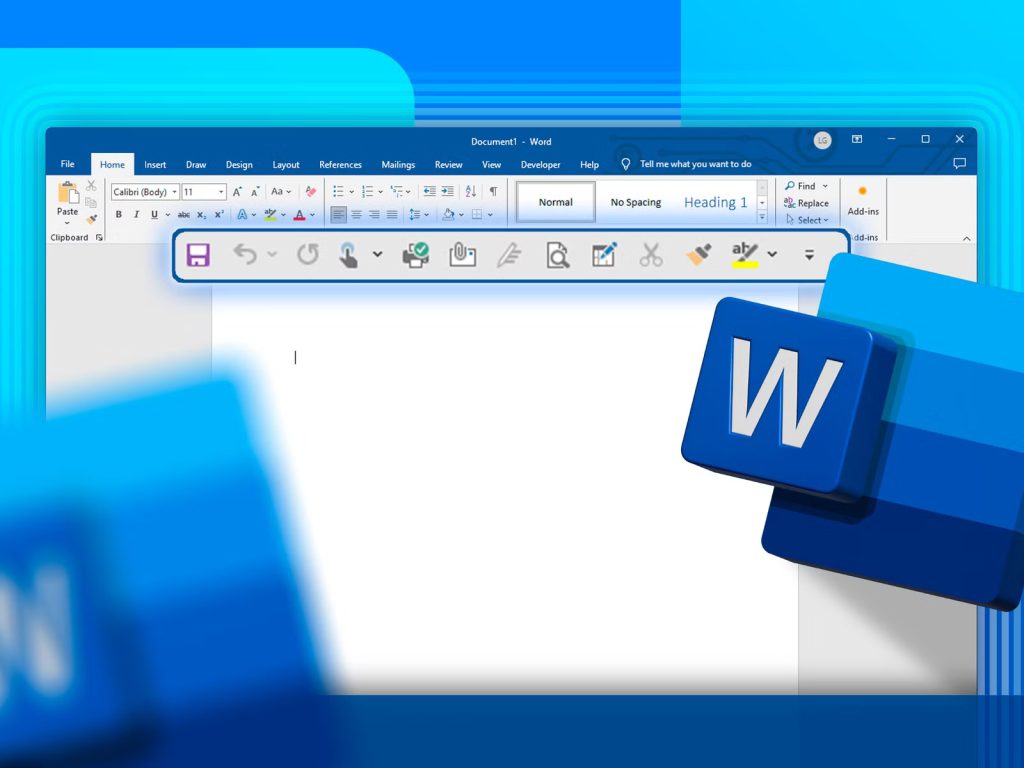
If you require absolute control over document layout, indexing, and complex styling, Microsoft Word is unrivaled. Its desktop application (shown below in a standard professional setting) offers a depth of features that the web-based Google Docs cannot match.
- Complex Layouts: Word excels at handling multi-column layouts, section breaks, and complex image wrapping. Its “Styles” pane allows for powerful, document-wide cascading formatting changes that remain stable.
- Referencing and Indexing: For academic writing, legal documents, or long reports, Word’s built-in tools for generating Tables of Contents, Authorities, Citations, and Bibliographies are vastly superior. Google Docs requires third-party add-ons to mimic this functionality, which can be inconsistent.
- Mail Merge and Automation: Word’s native Mail Merge feature and support for advanced VBA macros are powerful automation tools that remain unique to its ecosystem.
2. Collaboration and Cloud (Google Docs Wins)
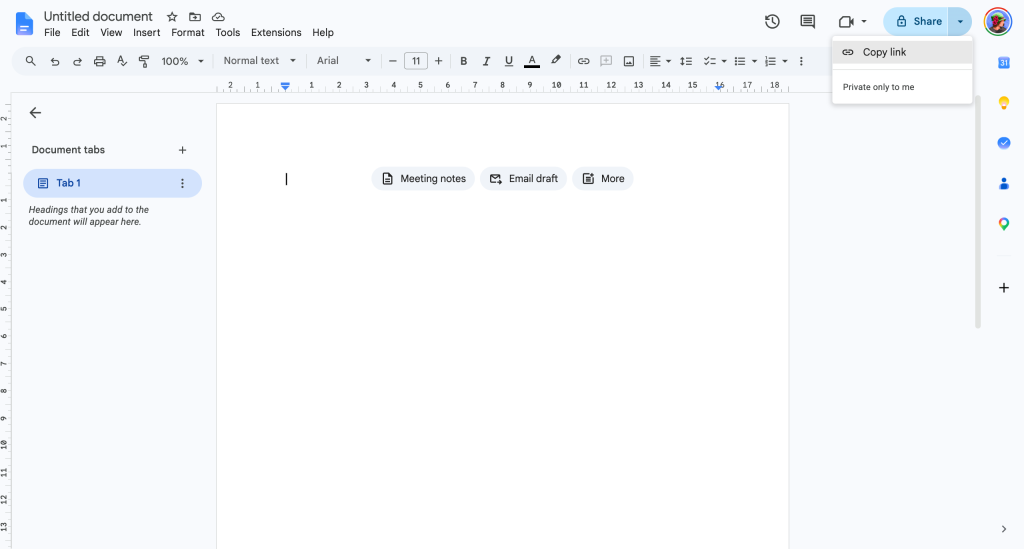
While Microsoft Word has narrowed the gap significantly, Google Docs remains the gold standard for seamless, frictionless collaboration.
- Real-Time Simplicity: Google Docs was built from the ground up for the browser. Multiple users can edit simultaneously with virtually no lag. The interface is clean, showing exactly where others are typing.
- Sharing and Permissions: Sharing a Google Doc is intuitive. You generate a link with specific permissions (View, Comment, Edit) instantly. Microsoft’s OneDrive-based sharing is functional but often involves more steps and permissions dialogue boxes.
- Auto-Save & Version History: Both platforms auto-save, but Google Docs’ version history is arguably more accessible and granular. Seeing precisely who made which change at what time, and reverting to that exact second, is effortless in the cloud-native environment.
3. Offline Access and Mobility (Tied, with Different Strengths)
The ability to work without an internet connection is vital for travelers and those with spotty service.
- Microsoft Word’s Continuity: Word’s traditional advantage is that its full-featured application works identically offline. When you reconnect, your changes sync to the cloud. You are never restricted by bandwidth.
- Google Docs’ Flexibility: Google Docs offers an “Offline” mode for its Chrome extension and mobile apps. You must pre-sync files you intend to use. While effective, it feels like an extension rather than the native state of the application. However, for mobile editing and quick access on any device via a browser, Google Docs has less friction.
4. Ecosystem and Pricing (Depends on Your Needs)
The choice often comes down to the broader suite of tools you already use.
- Microsoft 365: Microsoft Word is typically purchased as part of a Microsoft 365 subscription (Personal, Family, or Business). This is a paid model but includes 1TB of OneDrive storage, access to the desktop and mobile versions of Excel, PowerPoint, Outlook, and advanced security. It is the definitive ecosystem for established corporate environments.
- Google Workspace: Google Docs is free for personal use with a Google account (includes 15GB shared storage). Google Workspace (the paid business version) offers custom domains and pooled storage. Its ecosystem (Gmail, Drive, Meet, Sheets) is lightweight, flexible, and popular with startups, creative agencies, and education sectors.
The Final Verdict: Which is the Winner?
There is no single “best” word processor in 2026. The ideal choice depends entirely on your user persona and primary workflow.
| User Persona | Best Choice | Why? |
| Power User / Academic | Microsoft Word | Unmatched depth in formatting, citation tools, and indexing. Handles large, complex documents (100+ pages) with stability. |
| Agile Team / Marketer | Google Docs | Native real-time collaboration is the priority. Fast sharing, lightweight interface, and easy comments speed up approval cycles. |
| Student | It Depends | For basic essays, Google Docs is free and sufficient. For complex dissertations requiring strict formatting and bibliographies, Word is essential. Many universities provide M365 for free. |
| Budget-Conscious User | Google Docs | The personal version is robust and completely free. If you only write letters, resumes, or basic notes, there is no need to pay for Word. |
As we navigate 2026, we find that the debate is less about “Microsoft Word versus Google Docs” and more about matching the tool’s core philosophy—robust power versus frictionless flow—to the task at hand. Both platforms have become exceptional versions of themselves.